What is HEIC? Why iPhone Uses It and How to Open HEIC Files on Windows
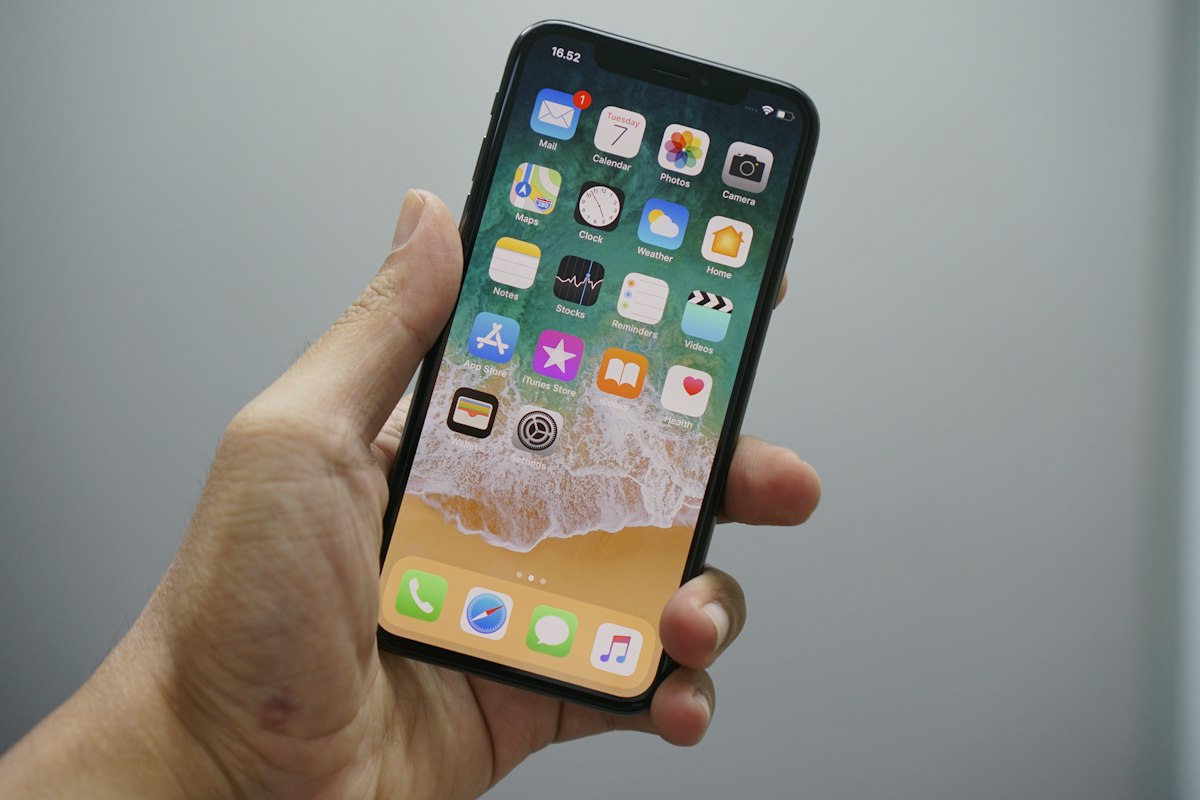
If you have an iPhone made after 2017, every photo you take is saved as a HEIC file by default. You probably never see the file extension because iOS hides it from you, but it is there. And it causes a specific, predictable problem: the moment you try to share those photos with anyone who does not use Apple hardware, things break.
This guide explains what HEIC actually is, why Apple uses it, and how to deal with it practically.
What HEIC stands for and where it came from
HEIC stands for High Efficiency Image Container. It is Apple’s implementation of HEIF — High Efficiency Image File Format — a standard developed by the Moving Picture Experts Group (MPEG), the same organization responsible for the MP3 and MP4 formats.
Apple adopted HEIF as the default photo format starting with iOS 11 in September 2017. Every iPhone from the iPhone 7 onwards saves photos in HEIC format by default.
The container format (HEIC) uses a compression algorithm called HEVC — High Efficiency Video Coding, also known as H.265. This is a video compression standard that happens to work extremely well for still images too.
Why Apple switched to HEIC
The switch was driven by storage. iPhones do not have expandable storage, and Apple’s internal SSDs are expensive. The company had a strong incentive to make photos as small as possible without reducing the quality users could see.
The results of switching from JPG to HEIC were significant:
A typical iPhone photo that would be 4–6MB as a JPG is 1.5–3MB as HEIC at equivalent visual quality. In practice, HEIC files are roughly half the size of comparable JPG files. For a phone that takes thousands of photos, this doubles the effective storage capacity for photos.
The quality-to-size ratio of HEIC is genuinely better than JPG. HEIC can represent the same visual information using fewer bits because its compression algorithm is more sophisticated. JPG was designed in 1992 using mathematics from the 1970s. HEIC uses algorithms developed in the 2010s with thirty additional years of research behind them.
HEIC also supports features JPG does not: 16-bit color depth (JPG supports 8-bit), HDR image data, transparency, and storing multiple images in a single file (which is how Live Photos work — the still frame and the video clip are both inside one HEIC file).
Why HEIC causes problems outside Apple
The format is technically superior to JPG. The problem is adoption.
JPG has been the universal standard for photographs since the 1990s. Every piece of software that handles images — every operating system, every social platform, every content management system, every design application — was built with JPG support from the beginning. HEIC arrived thirty years later and asked the entire ecosystem to add support for something new.
Windows does not support HEIC natively. Open a HEIC file on Windows 10 or 11 and you get “Photos can’t open this file” unless you have purchased the HEVC Video Extensions from the Microsoft Store. This is a paid add-on that most Windows users have never heard of and do not have installed.
Android handles HEIC inconsistently. Newer Android versions (Android 10+) can display HEIC files in the gallery, but many apps and older Android versions cannot. WhatsApp on Android will receive the file but display it as a download rather than inline.
Linux has partial support through libheif but it is not installed by default on most distributions.
Web browsers mostly support HEIC now — Safari has supported it since it is an Apple format, Chrome added support in 2023, Firefox in 2024 — but web platforms themselves (WordPress, Shopify, social media upload handlers) often reject or struggle with HEIC uploads because their server-side image processing libraries were written before HEIC became common.
Email clients on Windows and in web browsers typically cannot preview HEIC attachments. The recipient sees an attachment they cannot open without additional software.
Adobe products added HEIC support relatively recently. Older versions of Photoshop and Lightroom on Windows require a plugin or update to handle HEIC files.
How to tell if a file is HEIC
On iPhone: go to Photos, tap a photo, swipe up to see information. The format is listed there. Alternatively, when you AirDrop a photo to a Mac and it fails to open on the recipient’s Windows machine, it is almost certainly HEIC.
On Windows: find the file in Explorer, right-click, Properties. The file type shows as HEIC or HEIF if Windows recognizes the extension, or may show as an unknown file type if it does not.
The file extension is usually .heic or occasionally .heif. Some files from older iOS versions use .jpg as the extension even though the content is HEIC — this happens when iOS automatically converts during certain share operations.
How to convert HEIC to JPG
There are several approaches depending on what tools you have available.
On iPhone itself: Go to Settings → Camera → Formats → Most Compatible. This switches the camera to save new photos as JPG instead of HEIC. Note this only affects new photos — existing photos remain HEIC. It also slightly increases photo file sizes.
On Mac: Open the HEIC file in Preview, go to File → Export, choose JPEG from the Format dropdown. This works for individual files. For batch conversion, select multiple files in Finder, right-click, Quick Actions → Convert Image.
On Windows without extra software: This is where the options get limited. You need either the paid Microsoft HEVC extension, a desktop application like IrfanView (free), or an online converter.
Browser-based conversion: TinyTransform’s HEIC to JPG converter converts HEIC files directly in your browser using a WebAssembly port of the libheif library. The conversion happens on your device — your photos are not uploaded to any server. This matters for personal photos that may contain GPS location data, faces, and other sensitive content. Batch conversion is supported: drop multiple HEIC files and download all JPGs in a ZIP.
HEIC vs HEIF — is there a difference?
Technically yes, practically no for most users.
HEIF is the container format standard. HEIC is the specific variant that uses HEVC compression. Apple uses HEIC. Some Android devices use HEIF with different compression. For the purposes of converting iPhone photos, they are interchangeable — tools that handle HEIC handle HEIF.
Should you switch your iPhone to shoot JPG?
This is a genuine trade-off.
Reasons to stay on HEIC: Half the file size at equivalent quality, better color depth, Live Photos work correctly, you are staying in the Apple ecosystem.
Reasons to switch to JPG: Universal compatibility immediately without conversion steps, simpler workflow when sharing with Windows users regularly, better compatibility with older editing software.
If most of your photos stay within Apple devices and iCloud, HEIC is the better choice — you get the storage efficiency with no compatibility friction. If you regularly share photos with Windows users, upload to websites, or work with photo editing software, JPG avoids the conversion step every time.
A middle ground: keep HEIC on your phone for storage efficiency and convert batches when you need to share. The conversion takes seconds using browser-based tools and the original HEIC files stay on your phone at full quality.
What about AVIF — is that the next HEIC?
AVIF is a newer format based on the AV1 codec, developed by an open-source consortium including Google, Mozilla, and Cisco. It achieves even better compression than HEIC — roughly 20–30% smaller files at equivalent quality.
Browser support for AVIF reached near-universal in 2023-2024. However, no major smartphone manufacturer is using AVIF as the default capture format yet. HEIC will remain the dominant iPhone format for the foreseeable future.
TinyTransform supports AVIF to JPG and JPG to AVIF conversion for web developers who want to use AVIF for website images.
Quick reference
| Format | Typical size | Transparency | Universal support |
|---|---|---|---|
| JPG | Large | No | Yes |
| HEIC | Small | No | Apple only |
| PNG | Largest | Yes | Yes |
| WebP | Small | Yes | Modern browsers |
| AVIF | Smallest | Yes | Modern browsers |
For sharing photos with anyone on Windows, convert HEIC to JPG first. For web images, WebP or AVIF give you smaller files with full browser support.